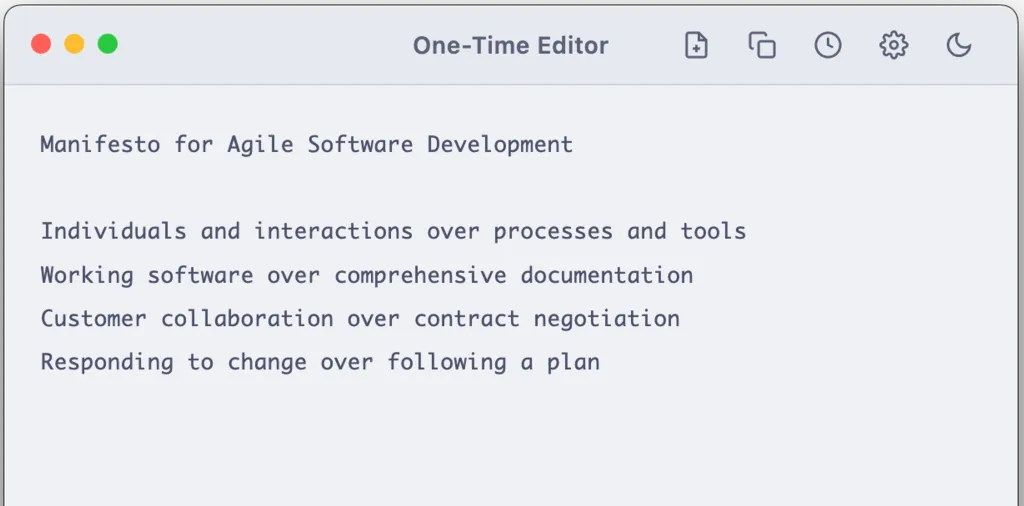
Released One-Time Editor, an editor for drafts before sending
I’ve created an app called “One-Time Editor”.
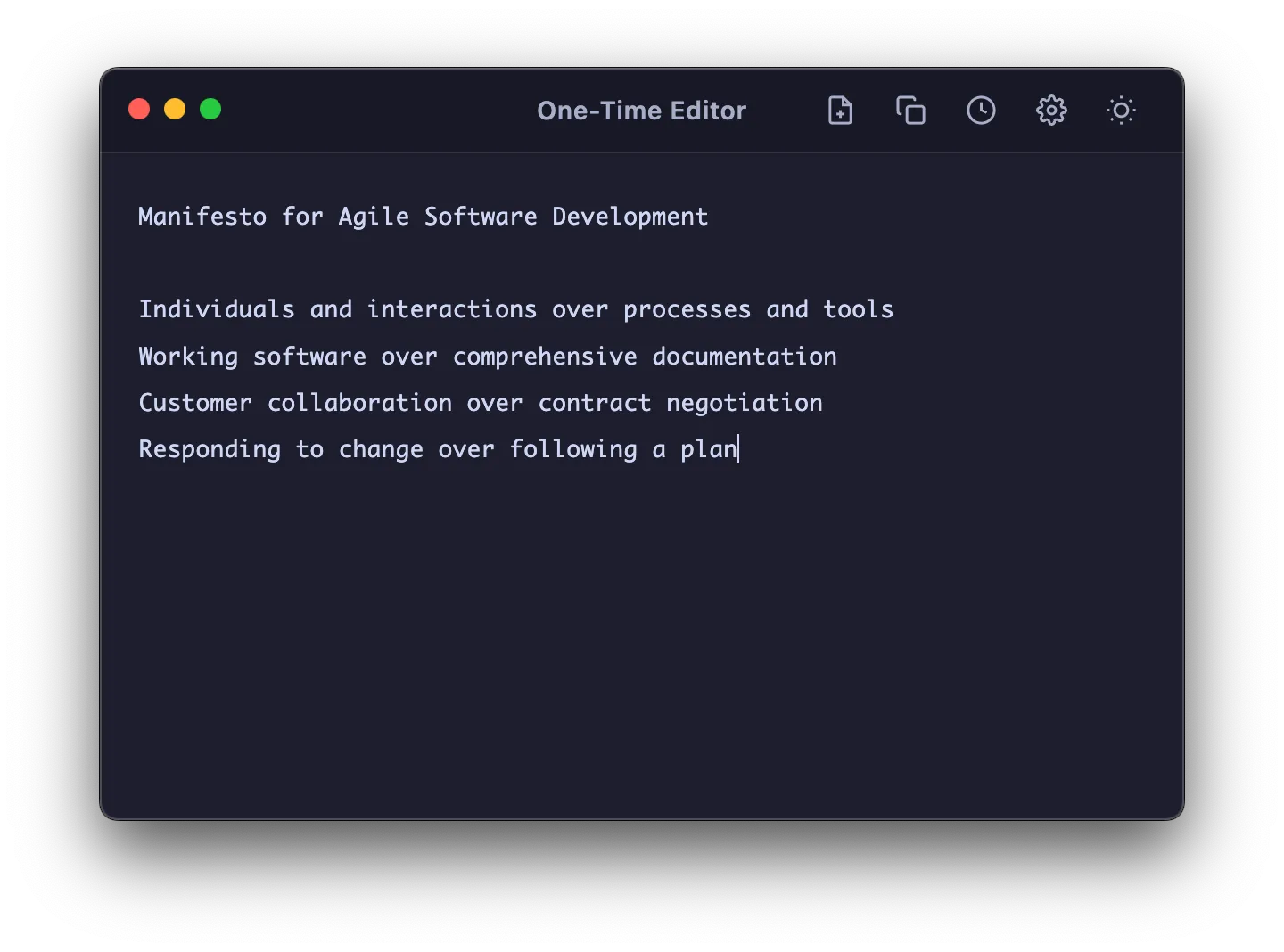
The image above shows dark mode. Here’s what it looks like in light mode.
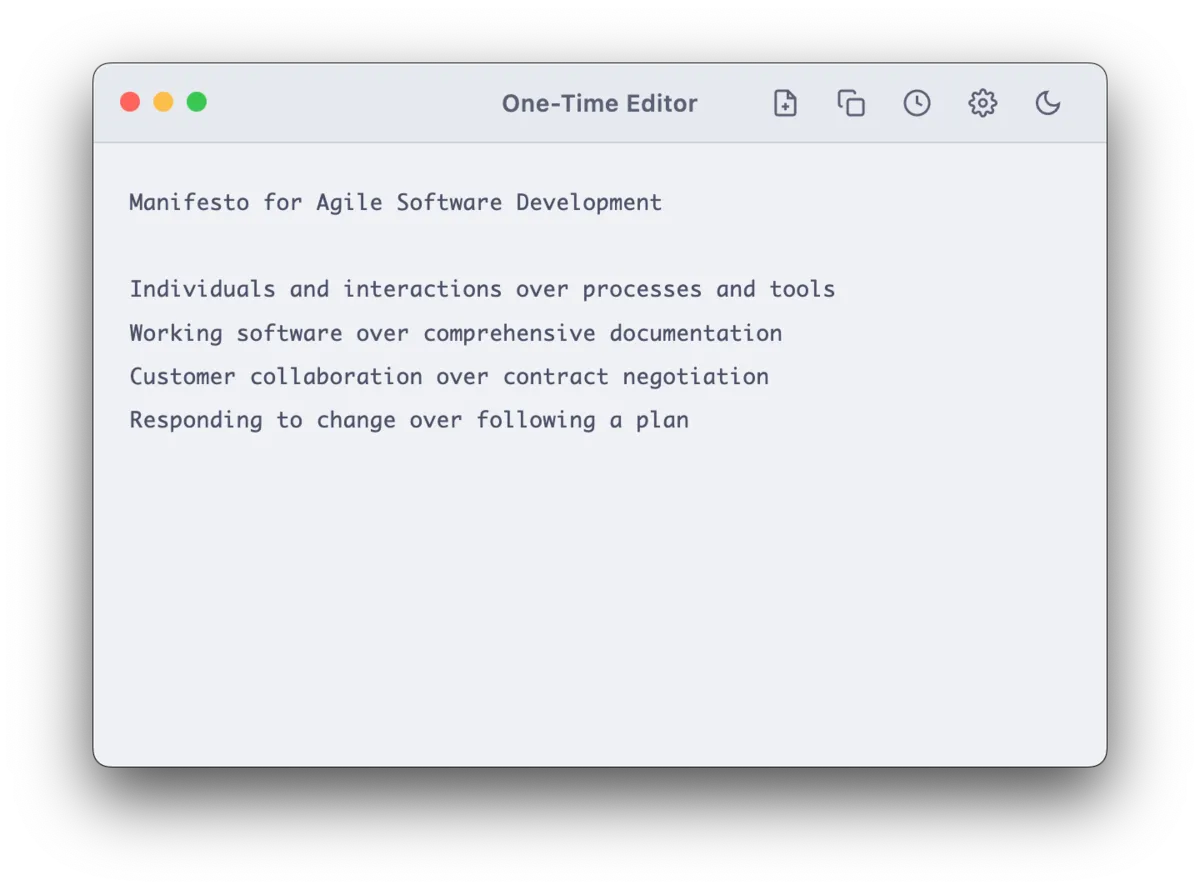
What kind of app is it, you ask? It’s a text editor that can be used for drafting messages before sending them in a chat.
By using this app, you can avoid the worry of accidentally sending a message prematurely by hitting Enter.
To quickly understand how it works, I recommend watching the video, which I’ve attached below.


How to Install
For macOS, use Homebrew. You can start using it right away by typing the following commands in your terminal.
brew tap lef237/tap
brew install --cask one-time-editor
Since it’s an Electron-based app, it’s also cross-platform compatible.
Windows and Linux users can install the pre-built app from here.

Windows users should select the .exe file, and Linux users should select the AppImage to install it. 1
Features
The main highlight is that you can toggle (show/hide) the window using a keyboard shortcut.
What’s more, it automatically copies the content you’ve entered as soon as you toggle it, allowing for instant pasting.
- Open One-Time Editor with a keyboard shortcut.
- Type the content you want to send.
- Close it with the keyboard shortcut.
- The content will be automatically copied.
- On macOS, focus will automatically return to the window you were previously using.
- Paste and then send.
It also supports switching between light and dark modes. I think the design is also stylish.
Of course, you can also customize the keyboard shortcut! The default is Ctrl+J, but feel free to assign any shortcut you like.
Why I Made It
Many people have probably experienced indecision about whether to use Enter, Shift+Enter, or Ctrl+Enter to send a chat message.
And then, accidentally sending a message in the middle of writing…
Using some kind of editor for drafting isn’t bad, but it can be a bit cumbersome to constantly be asked to create a new file or to manage windows.
This app is designed for throwaway writing, and it allows for displaying/hiding the window and copying content with a single shortcut, making it quite fast.
Challenges During Development
There were several challenges.
However, the most difficult problem was dealing with code signing and notarization.
When you create an app with Electron, it works fine on your local machine, but if you upload it to the internet and download it, the app becomes corrupted.
You might have seen this warning when downloading things like Docker:
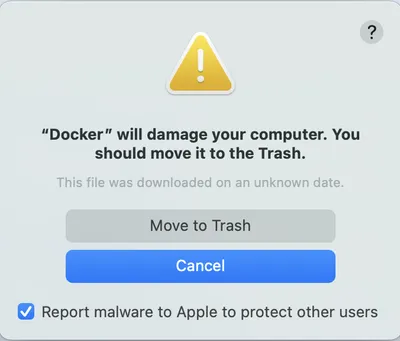
Therefore, you need to use the xattr command.

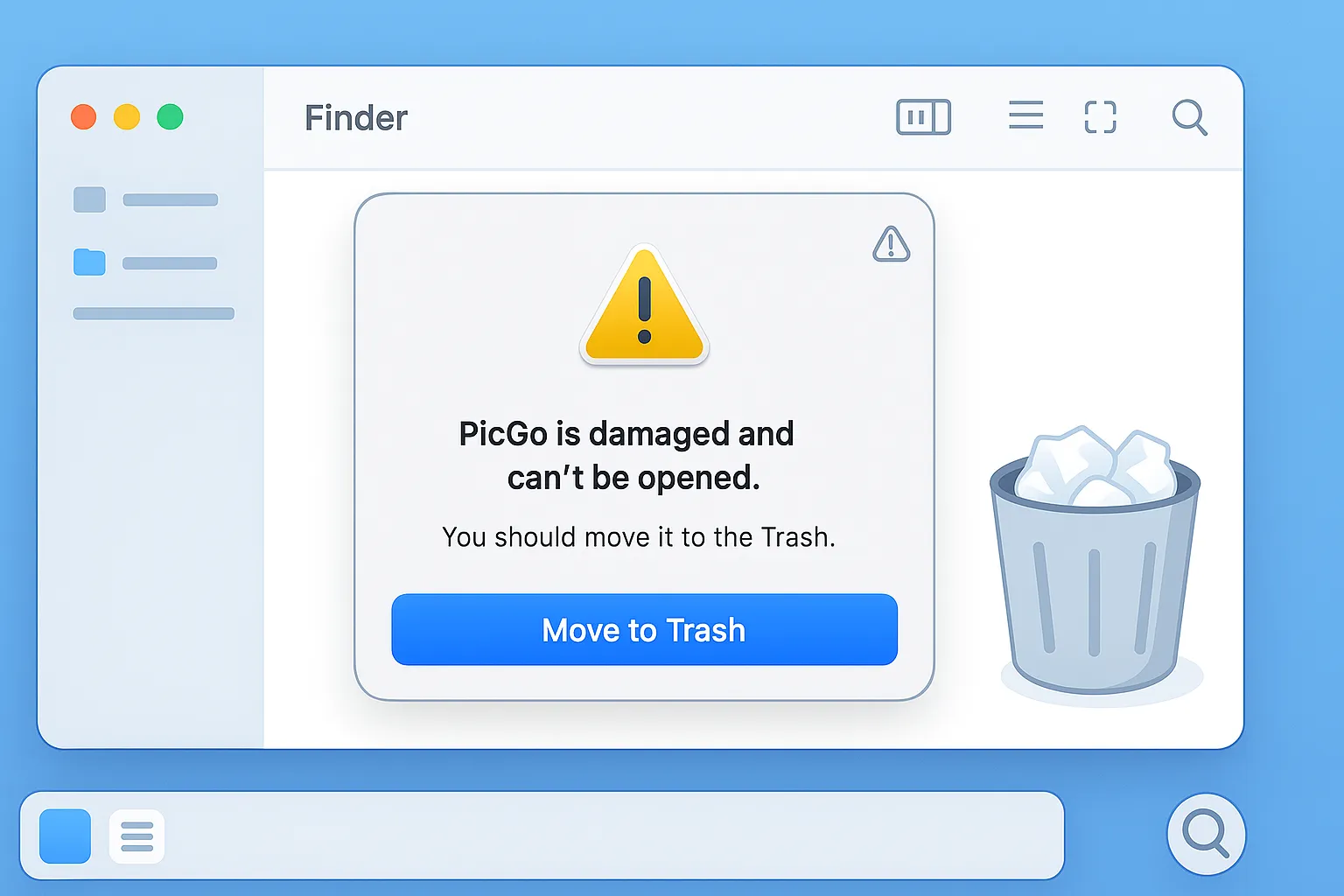
This means you need to run the command xattr -rc "/Applications/hoge.app" after installation, which is a bit troublesome.
When I looked into simplifying this, I realized that using postflight could automate this process if installed via homebrew-tap.
If you’re looking to distribute Electron apps, please use this as a reference!
GitHub
GitHub is also public.
If you have any feature requests, please open an Issue. 🐘
Footnotes
-
If it doesn’t work on Windows or other OSs, please comment on GitHub! ↩